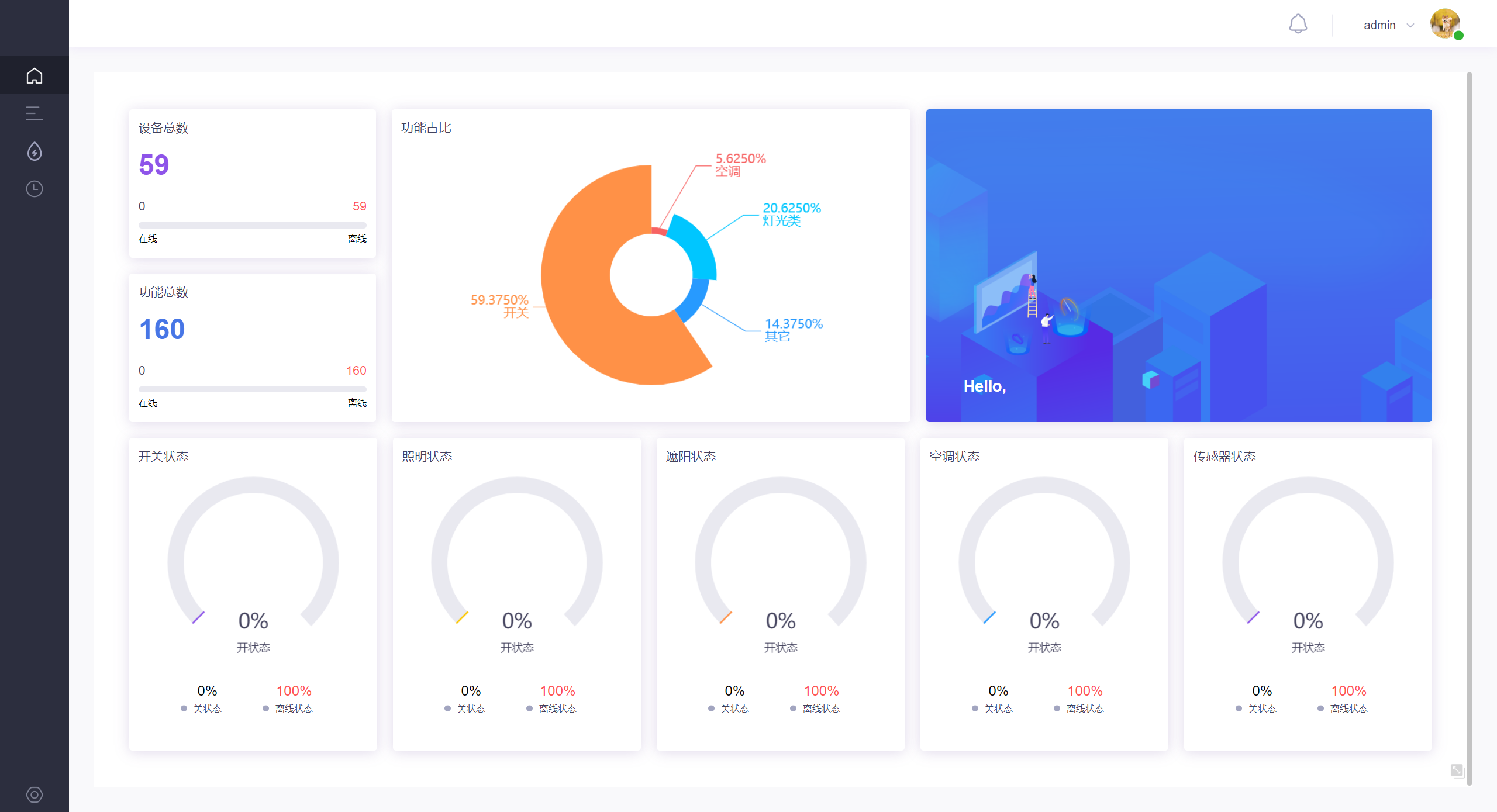
Instructions for the integration steps of one-click login and single sign-on
Third-party platforms can achieve integration with the GVP platform without requiring development capabilities, utilizing a one-click login integration method. For specific steps, please refer to the instructions
Step 1: Obtain a dedicated GVP temporary administrator account and password
Generally, it is sufficient to ask the project leader to create a temporary administrator account and password specifically for the third-party platform
Step 2: Obtain the Token value
- Log in to the test tool via GVP, enter the IP address of the GVP server, the account and password obtained in step one, and if the login is successful, a Token value will be returned, as shown below:
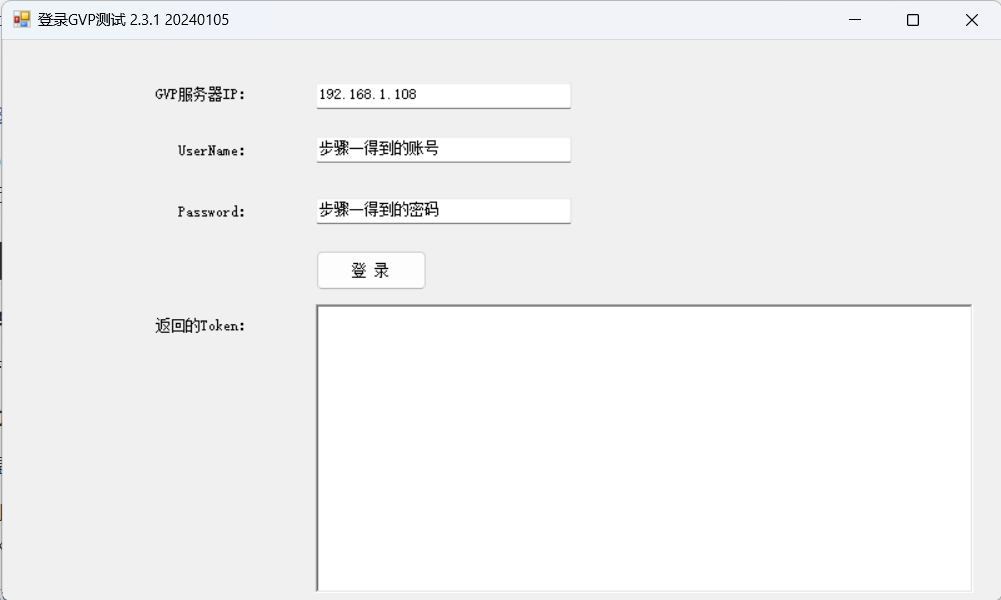
- Download link for GVP login test tool: http://hotel.hdlcontrol.com:6679/GVPTokenTool.zip
Step 3: Configure the single sign-on link address
The single sign-on link address is as follows: http://192.168.1.108:8008/#/HomePage?token=xxx
Description of the single sign-on link address: 192.168.1.108 is the IP address of the GVP server, xxx is the Token value obtained in step two, and port 8008 is the fixed GVP service port; the single sign-on interface only verifies the correctness of the Token, not whether the Token has expired. Third-party platforms do not need to consider the issue of Token expiration.
Step 4: Click the single sign-on link to normally navigate to the GVP main interface
The third-party platform utilizes a pre-configured GVP platform button, and the address linked to the button is a complete single sign-on link. Clicking the button will redirect to the main interface of the GVP platform, as shown below: