Instructions for implementing functional integration by calling API interfaces
To automatically achieve functional integration with the GVP platform through calling the API interface by a third-party platform, development capabilities are required. The specific integration steps are as follows:
Step 1: Obtain a dedicated temporary administrator account and password for GVP
Generally, it is sufficient to ask the project leader to create a temporary administrator account and password
Step 2: Description of JSON string encryption method for the body content of the API interface
For all query and control interfaces of GVP's API, the format of the body content that needs to be submitted is specified as raw, and the request parameters that are not empty are all encrypted data
Json encryption verification: Using the GVP API encryption tool, the login Json string content, such as: {"UserName": "BA", "UserPassword": "hdl123456"}, can be converted into encrypted data, such as: IYLsPkqw6MSk7t8hk/V5Kj2q/VuBXCrkMvVfp7M6lR/hOM5+tgINPkYvtS9UOZPc. If the conversion can be successfully completed through the GVP API encryption tool, it indicates that it is normal and effective;
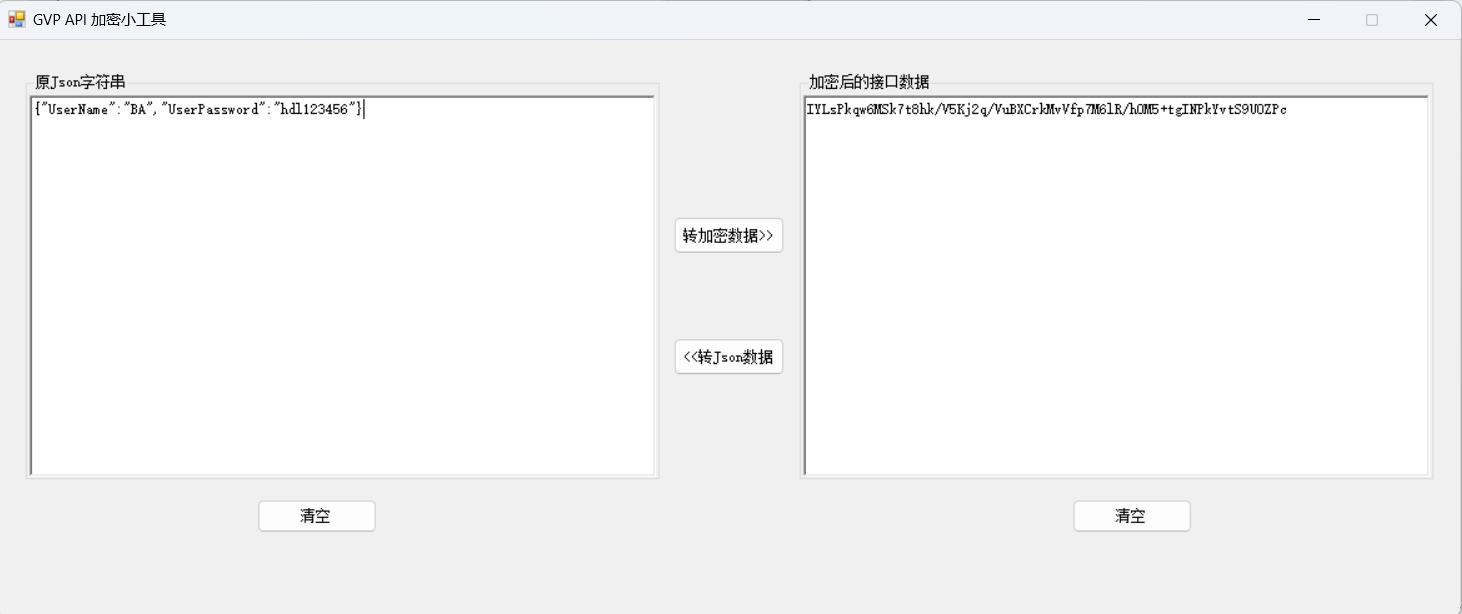
GVP API encryption tool download link: http://hotel.hdlcontrol.com:6679/GVPAPITool.zip
Encryption method description: Aes encryption, ECB mode, PKCS7. The key must be 32 bits. Please contact the HDL development engineer to obtain the key value
Encryption Demo in C# Development Language: The encrypted data obtained can be verified for correctness using the GVP API encryption tool
using System.Security.Cryptography;
/// <summary>
GVP's JSON string encryption Demo, successfully returning encrypted data
/// </summary>
/// <param name="source">Original Json string</param>
/// <param name="key">32-bit key</param>
/// <returns></returns>
public static string GVPEncryptAes(string source, string key)
{
    using (AesCryptoServiceProvider aesProvider = new AesCryptoServiceProvider())
    {
        aesProvider.Key = Encoding.UTF8.GetBytes(key);
        aesProvider.Mode = CipherMode.ECB;
        aesProvider.Padding = PaddingMode.PKCS7;
        using (ICryptoTransform cryptoTransform = aesProvider.CreateEncryptor())
        {
            byte[] inputBuffers = Encoding.UTF8.GetBytes(source);
            byte[] results = cryptoTransform.TransformFinalBlock(inputBuffers, 0, inputBuffers.Length);
            aesProvider.Clear();
            aesProvider.Dispose();
            return Convert.ToBase64String(results, 0, results.Length);
        }
    }
}
- Encryption Demo in JAVA development language: The encrypted data obtained can be verified for correctness using the GVP API encryption tool
import javax.crypto.Cipher;
import javax.crypto.spec.SecretKeySpec;
import java.nio.charset.StandardCharsets;
import java.util.Base64;
/**
 * GVP's JSON string encryption Demo, successfully returning encrypted data
 * @param source Original Json string
 * @param key 32-bit key
 * @return
 * @throws Exception
 */
public static String GVPEncryptAes(String source, String key) throws Exception {
        // Note: The key length for AES encryption should be 16, 24, or 32 bytes, adjusted according to actual needs
        byte[] raw = key.getBytes(StandardCharsets.UTF_8);
        //
        SecretKeySpec keySpec = new SecretKeySpec(raw, "AES");
        // PKCS5Padding in Java is equivalent to PKCS7Padding in C#
        Cipher cipher = Cipher.getInstance("AES/ECB/PKCS5Padding");
        cipher.init(Cipher.ENCRYPT_MODE, keySpec);

        byte[] encrypted = cipher.doFinal(source.getBytes(StandardCharsets.UTF_8));
        return Base64.getEncoder().encodeToString(encrypted);
        }
Step 3: Call the GVP login interface and return the Token value upon success
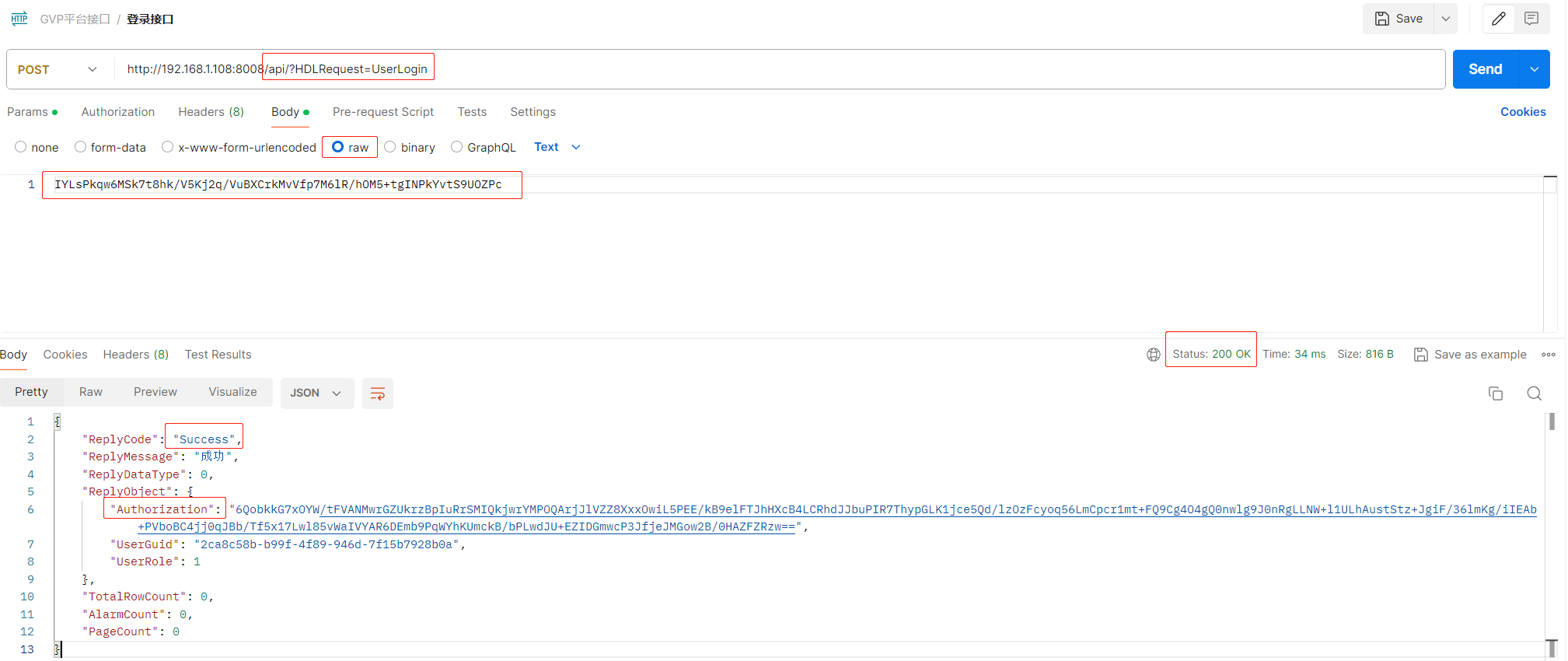
- Configuration instructions for Postman's GVP login interface

Login request interface example, 192.168.1.108 is the IP address of the computer where the GVP server is located. Please adjust according to the actual situation, and the port 8008 is fixed
http://192.168.1.108:8008/api/?HDLRequest=UserLogin
Request method: POST
Interface address: /api/?HDLRequest=UserLogin
Request data type: application/json
Response data type: application/json
Example of request parameters for the login user interface, Json string before encryption: {"UserName": "BA", "UserPassword": "hdl123456"}
Postman's body data type: raw
Example of Postman's body content, encrypted string: IYLsPkqw6MSk7t8hk/V5Kj2q/VuBXCrkMvVfp7M6lR/hOM5+tgINPkYvtS9UOZPc
- The Postman GVP login interface successfully returned
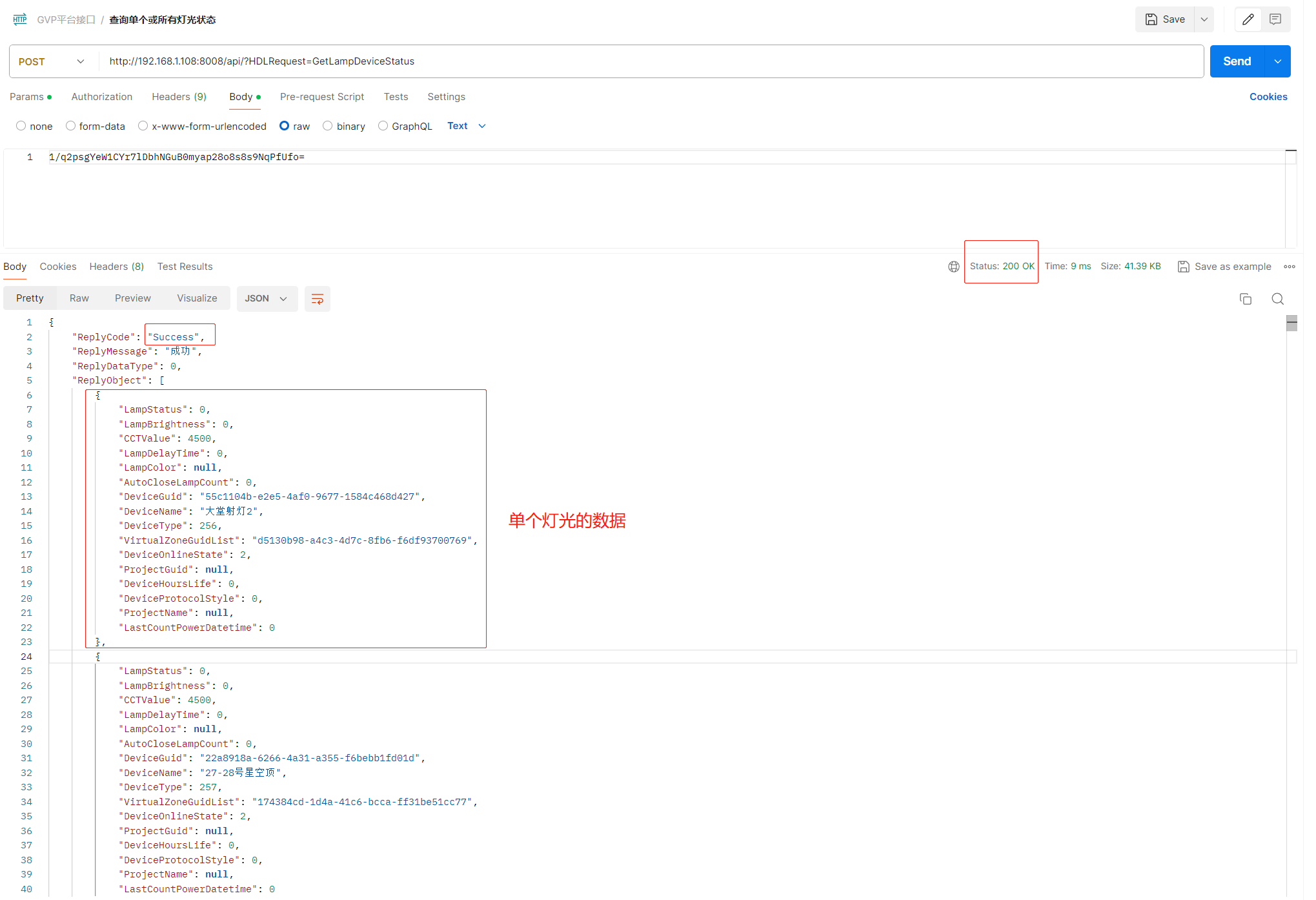
Step 4: Call the query interface according to business requirements, such as the example of querying the lighting device interface
- Postman usage example for obtaining individual or all light status data, Headers, add a key as Authorization, with the value being the Token returned by the login interface

- Set the body of Postman, select raw, and enter the encrypted data of the Json string. Obtain the original Json string of single or all light status data: {"DeviceGuid": "all"}, and the encrypted data: 1/q2psgYeW1CYr7lDbhNGuB0myap28o8s8s9NqPfUfo=, as shown in the figure below

Example of a request interface for obtaining single or all light status data, 192.168.1.108 is the IP address of the computer where the GVP server is located. Please adjust according to the actual situation, and the port 8008 is fixed
http://192.168.1.108:8008/api/?HDLRequest=GetLampDeviceStatus
Request method: POST
Interface address: /api/?HDLRequest=GetLampDeviceStatus
Request data type: application/json
Response data type: application/json
Example of request parameters for obtaining all light status interfaces, Json string before encryption:{"DeviceGuid":"all"}
Postman's body data type: raw
Example of Postman's body content, encrypted string: 1/q2psgYeW1CYr7lDbhNGuB0myap28o8s8s9NqPfUfo=
- Click the "Send" button in Postman. If successful, the data of the lights will be returned. If unsuccessful, an exception message will be returned
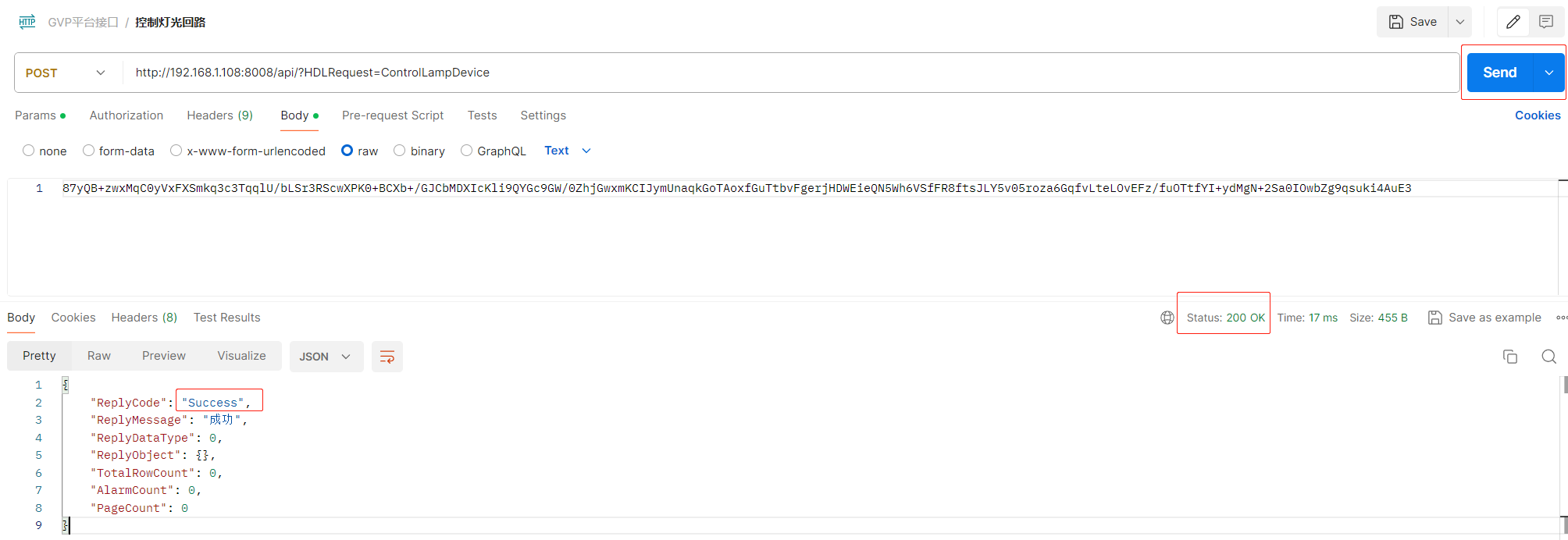
Step 5: Call the control interface according to business requirements, such as the lighting device control interface
- Postman usage example for controlling a single lighting device. Headers: add a key named Authorization with a value of the Token returned by the login API

- Set the body of Postman, select raw, and enter the encrypted data of the Json string. For example, the original Json string for querying to control the light to turn on is: {"DeviceGuid":"55c1104b-e2e5-4af0-9677-1584c468d427","LampActionType":"TurnOn","LampBrightness":100,"LampColor":"","CCTValue":0}. The encrypted data is: 87yQB+zwxMqC0yVxFXSmkq3c3TqqlU/bLSr3RScwXPK0+BCXb+/GJCbMDXIcKli9QYGc9GW/0ZhjGwxmKCIJymUnaqkGoTAoxfGuTtbvFgerjHDWEieQN5Wh6VSfFR8ftsJLY5v05roza6GqfvLteLOvEFz/fuOTtfYI+ydMgN+2Sa0IOwbZg9qsuki4AuE3

Example of request interface for controlling a single lighting device, 192.168.1.108 is the IP address of the computer where the GVP server is located. Please adjust according to the actual situation, and the port 8008 is fixed
http://192.168.1.108:8008/api/?HDLRequest=ControlLampDevice
Request method: POST
Interface address: /api/?HDLRequest=ControlLampDevice
Request data type: application/json
Response data type: application/json
Example of interface request parameters for controlling the turning on (lighting) of lighting equipment, Json string before encryption:
{"DeviceGuid":"55c1104b-e2e5-4af0-9677-1584c468d427","LampActionType":"TurnOn","LampBrightness":100,"LampColor":"","CCTValue":0}
Postman's body data type: raw
Example content of Postman's body, encrypted string:
87yQB+zwxMqC0yVxFXSmkq3c3TqqlU/bLSr3RScwXPK0+BCXb+/GJCbMDXIcKli9QYGc9GW/0ZhjGwxmKCIJymUnaqkGoTAoxfGuTtbvFgerjHDWEieQN5Wh6VSfFR8ftsJLY5v05roza6GqfvLteLOvEFz/fuOTtfYI+ydMgN+2Sa0IOwbZg9qsuki4AuE3
- Click the "Send" button in Postman. If the control is successful, it will return "ReplyCode": "Success", as shown below. If it fails, it will return other exception information;