
GVP docking method
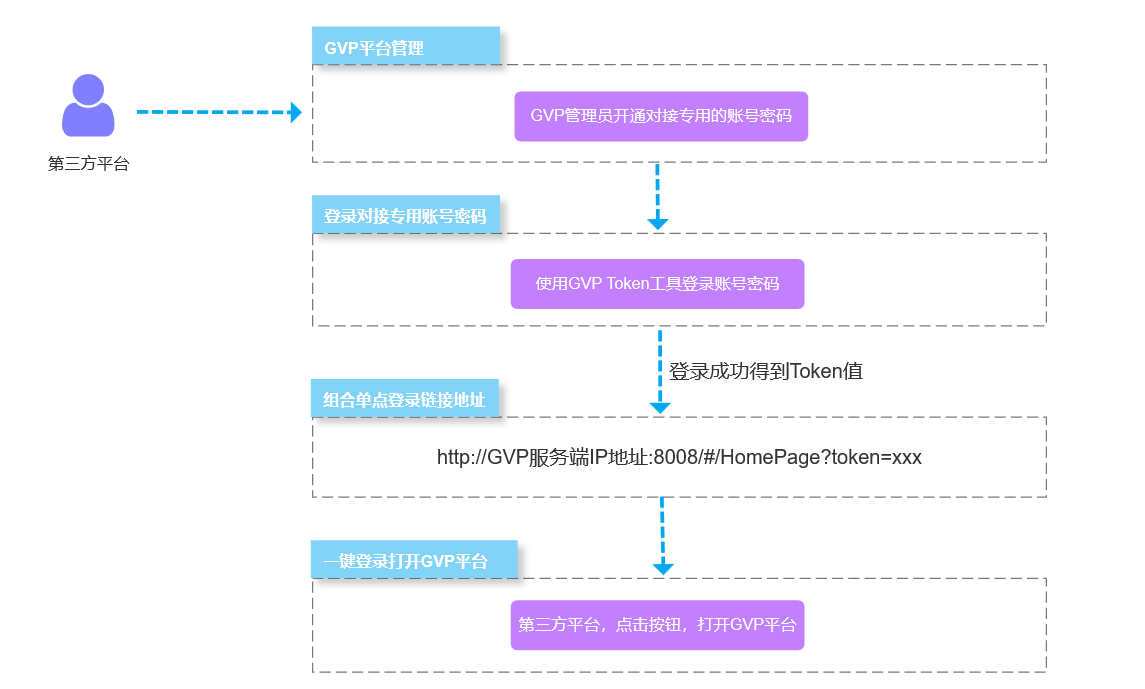
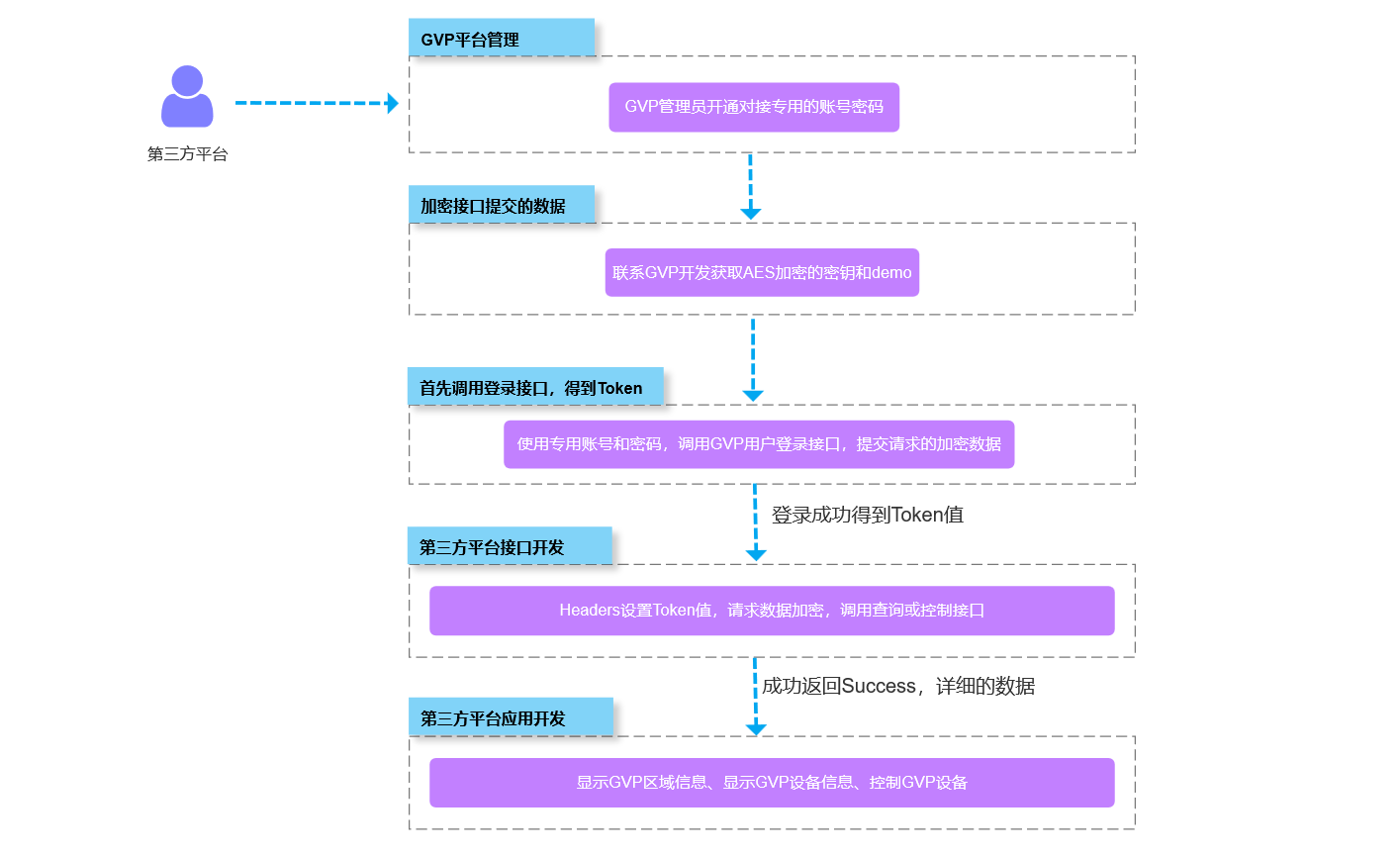
GVP provides two docking methods: one-click login (single sign-on) and calling API interface to achieve functional docking by oneself;
Comparison of Two Docking Methods for GVP
| GVP docking method | Application scenario | Characteristics |
|---|---|---|
| One-click login, single sign-on | Suitable for third-party platforms aiming to simplify user login processes; With a single button or link, there's no need to manually enter account credentials, as it directly redirects to the main interface of GVP; |
Simplifies the login process, ideal for quickly integrating and accessing third-party platforms |
| Implement functional integration through API calls | Targeted at third-party platforms requiring deep integration; Retrieve device information from the GVP platform and display it on their own platform; Utilize the API provided by GVP to perform device control operations and enhance platform functionality; |
Focused on functional integration and data synchronization, suitable for third-party platforms requiring high customization and deep integration between systems |
Process description of two docking methods for GVP
1. Flowchart for integrating one-click login and single sign-on
2. Flowchart for Implementing Function Integration by Calling API Interface
Example diagram of the docking process for lighting equipment on third-party platforms
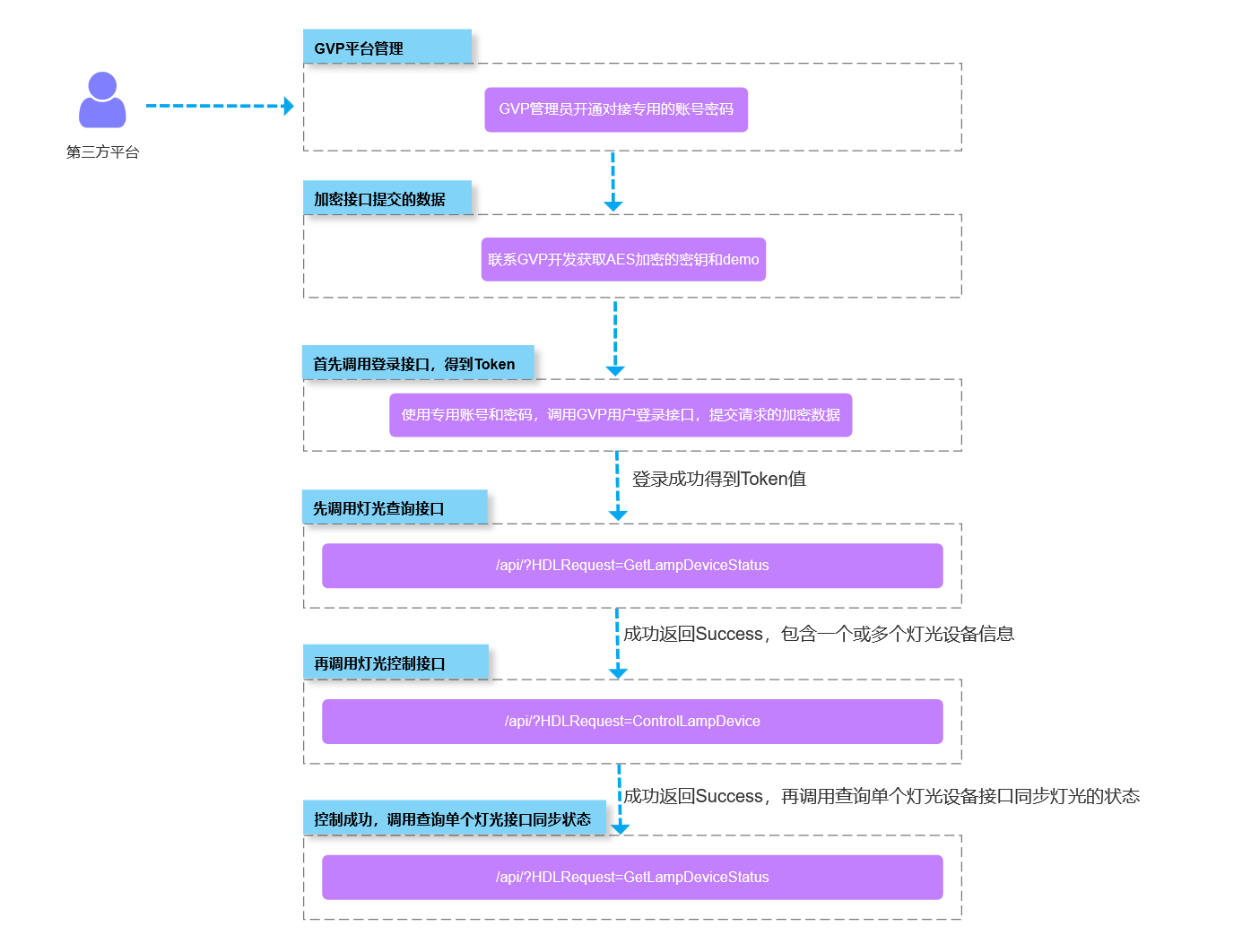
Instructions for the docking process of using lighting equipment functions on third-party platforms:
- Obtain a dedicated GVP account and password for docking;
- Refer to the encryption method for interface request parameters in the API interface docking guide; Guide for calling API interface to achieve functional docking, step 2;
- Call the Login API;
- After successful login, call the interface for querying a single or all lighting devices in the Lighting Device Interface. The interface address is: /api/?HDLRequest=GetLampDeviceStatus;
- After successful query, obtain the DeviceGuid of the lighting device, lighting status, and other data, and then call the control single lighting device interface of Lighting Device Interface, with the interface address being: /api/?HDLRequest=ControlLampDevice;
- After successfully controlling the light interface, finally call the interface for querying a single or all light devices of the Light Device Interface again. The interface address is: /api/?HDLRequest=GetLampDeviceStatus;
- After successful query, the status data of the lighting device is obtained again, achieving the status synchronization function after controlling the lighting device;